

User Guide: Installing Adaire Messenger on macOS via (Safari)
By installing Adaire Messenger as a Progressive Web App (PWA), you can access your chats directly from your Dock without needing to keep Safari open. It behaves like a native Mac application with its own dedicated window and notifications.
Step 1: Open the Application URL
Launch Safari and navigate to the Adaire Messenger portal: 👉 https://chat.production-messaging.adaire.dev/
Step 2: Add Adaire to Your Dock
Once the page has loaded, you have two ways to install the app:
- Option A (Menu Bar): Go to the top menu bar and select File > Add to Dock…
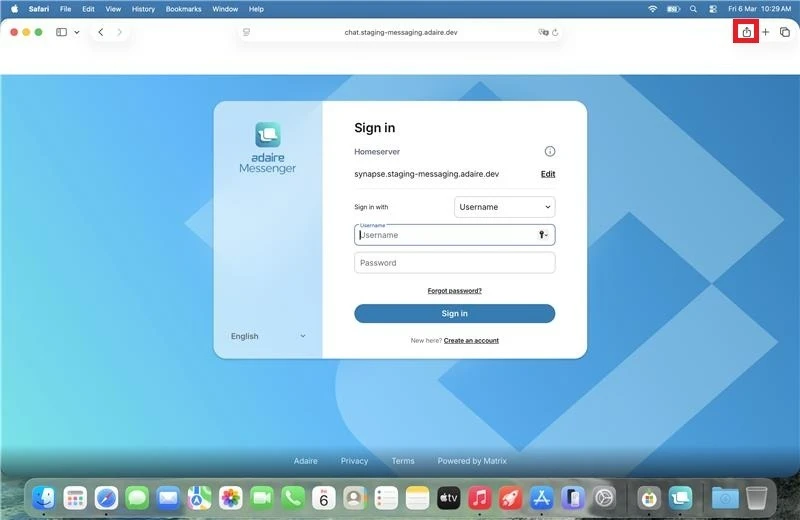
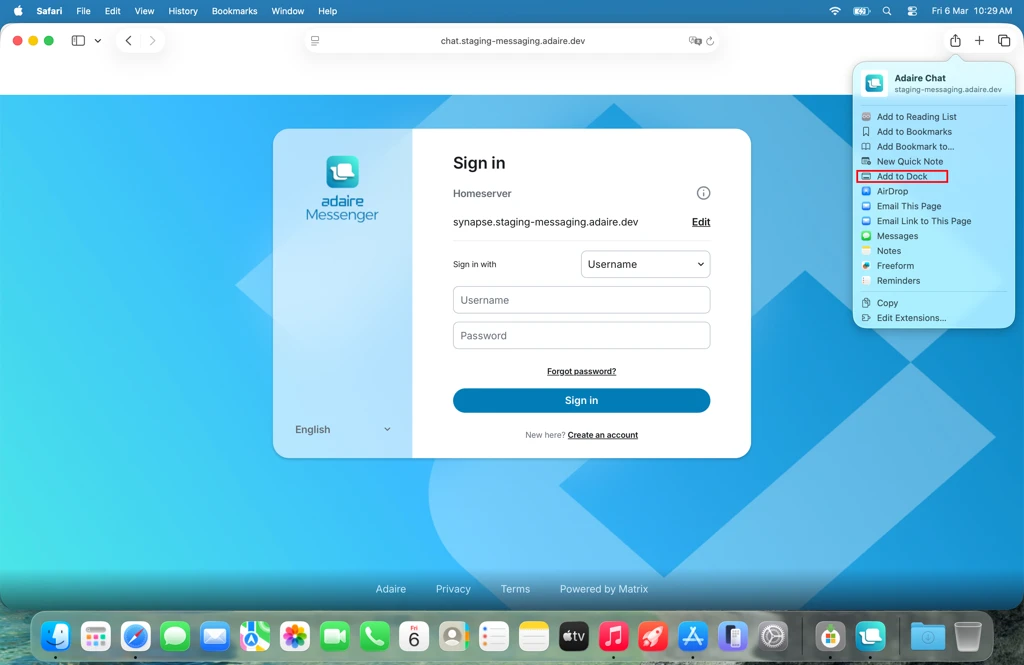
- Option B (Share Button): Click the Share icon (the square with an upward arrow) in the top-right Safari toolbar, then select Add to Dock.
Step 3: Confirm Installation
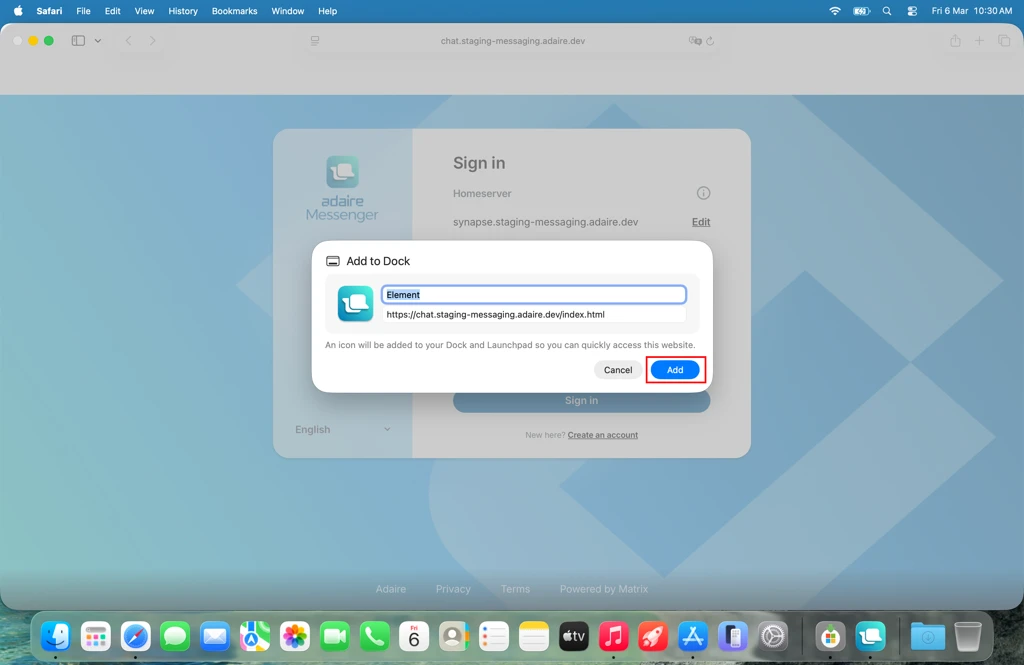
A pop-up window will appear titled “Add to Dock.”
- Name: It will automatically be named “Adaire Messenger.”
- Icon: You will see the blue Adaire Messenger logo.
- Click the blue Add button in the bottom right corner.
Step 4: Launch and Log In
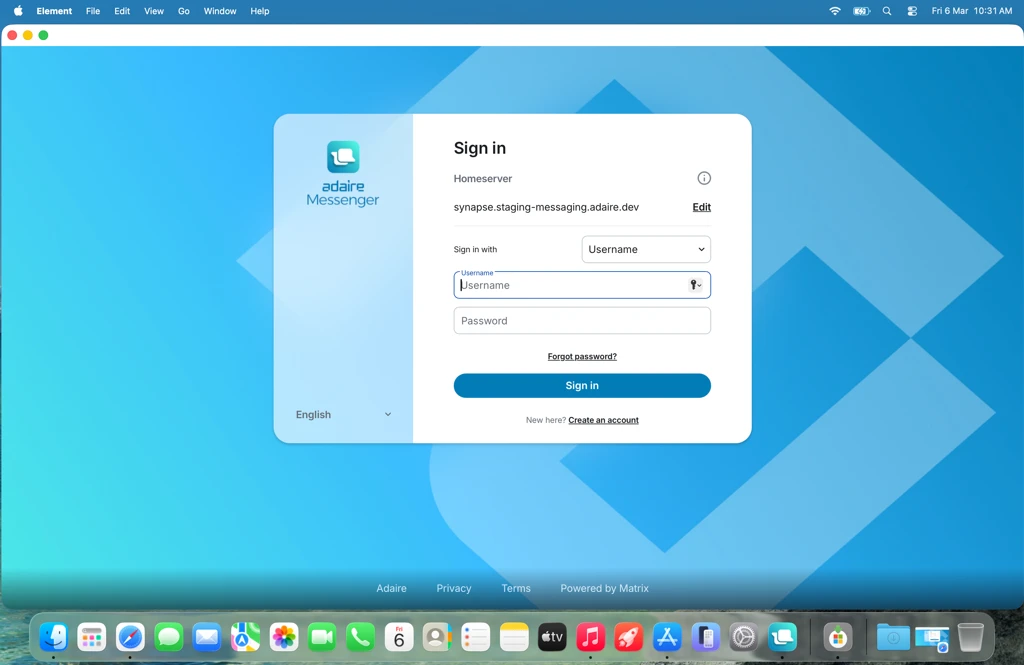
- The Adaire Messenger icon will now appear instantly in your Mac’s Dock and in your Launchpad.
- Click the icon to open the app in its own standalone window.
- Log in with your credentials. The app will stay signed in even if you quit Safari.
Pro Tips for Adaire Messenger Users
- Auto-Launch on Startup: To ensure you never miss a message, Right-Click the Adaire icon in your Dock, select Options, and check Open at Login.
- Notifications: When you first open the app, Safari may ask if you want to allow notifications. Click Allow to receive message alerts in the macOS Notification Center.